Google Ads
Connect your Google Ads account to Cortex.
Linking Google Ads lets Cortex read your App campaigns and conversions. Access is granted through Google sign-in and stored encrypted.
Connect Google Ads
Google Ads uses Google sign-in, so there is no token to create.
Check your access
Sign in to Google Ads with the Google account you will use, and make sure it can open the ad account. Open Admin → Access and security → Users (direct link) and check the Access level column for that account. It needs Standard or Admin to change campaigns, or Read only to only view them.
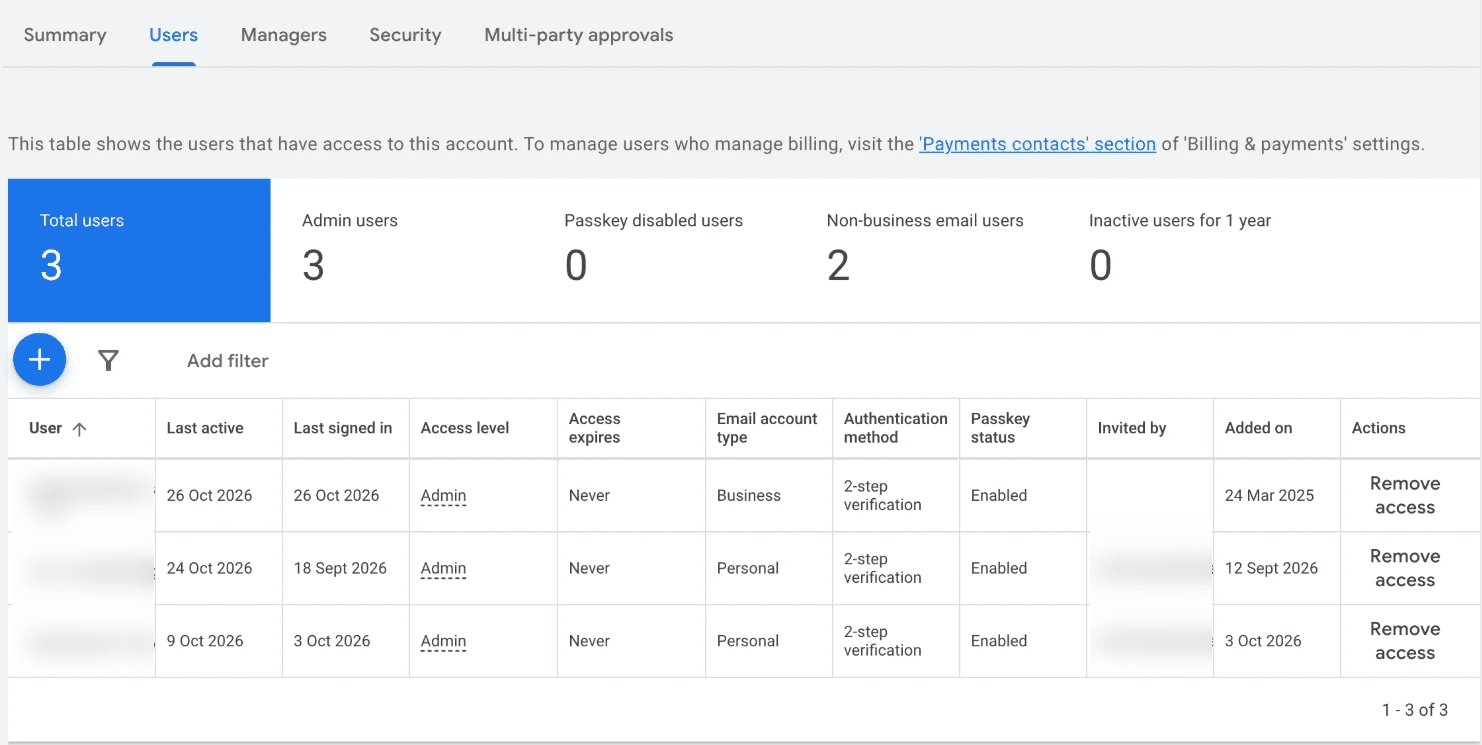
An admin can add the account with the + button and choose its access level.
Sign in from Cortex
Go to Settings → Integrations → Link an account → Google Ads. Select Get started, then Continue to Google. Sign in with that Google account and allow access to Google Ads.
Pick the ad account
After Google redirects you back, Pick the ad account Cortex should manage. If the Google account cannot reach any Google Ads customers, Cortex says so.
Spending limits
After you select Connect, Cortex opens the Daily spend ceiling dialog (the stepper labels this step Spending limits). Set the Daily spend ceiling, then select Save ceiling. Cortex refuses later budget or bid changes that would push enabled daily budgets above this ceiling.
The access token is stored encrypted. If Google revokes access, the account shows "Reconnect needed" and syncing pauses until you reconnect. Disconnecting revokes the token.