Apple Search Ads
Connect your Apple Search Ads account to Cortex.
Linking Apple Search Ads lets Cortex read your campaigns, spend and installs. Credentials are verified with Apple before they are saved and stored encrypted.
How linking works
Cortex creates a key pair for you and keeps the private key encrypted. You give Apple the public key from Cortex, and Apple gives you back three IDs that you paste into Cortex. You never handle a private key.
You'll move between Cortex and Apple Ads a few times. The steps below follow that order.
Only owners and admins of a Cortex workspace can link accounts. Other members see "Only owners and admins can link accounts. Ask one of them to link yours later."
Instructions
Start in Cortex
Go to Settings → Integrations → Link an account → Apple Search Ads. Select Get started. The stepper shows Step 1 of 5, including Spending limits. Keep this tab open.
Open User Management in Apple Ads
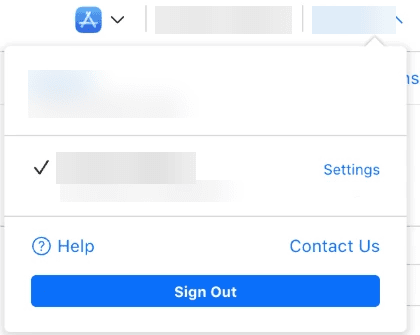
Sign in to Apple Ads (Advanced) as an Account Admin. Open your name in the top right and select Settings next to your account.
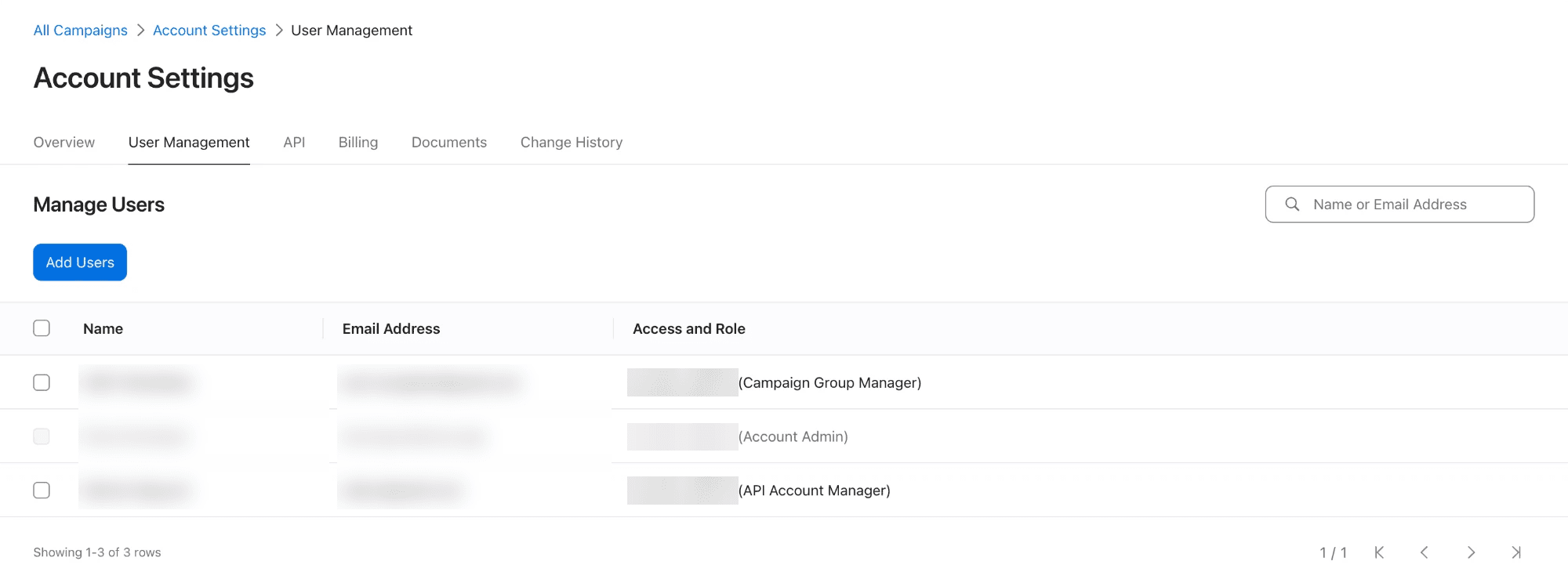
Open the User Management tab and select Add Users.
Invite an API user
Enter a name and an email address you can open, choose the role API Account Manager, and select Send Invite. Choose API Account Read Only instead if Cortex should only read.
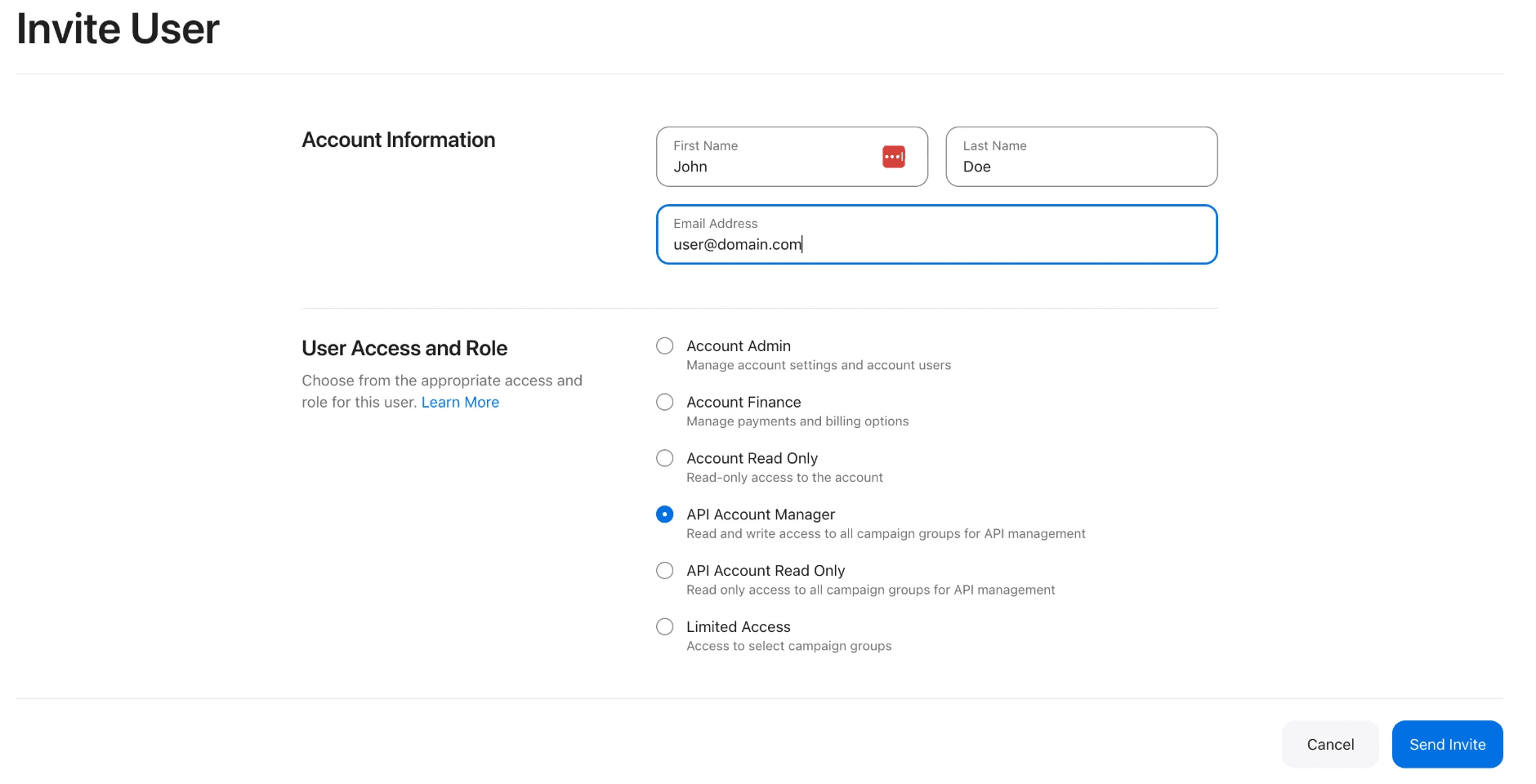
An Account Admin can't hold API credentials, and each Apple Ads user can have only one API key. If you already use the Apple Ads API with another tool, invite a new user for Cortex instead of reusing that one.
Accept the invite and sign in as the API user
Open the invitation email and accept it. Apple may ask you to create a new Apple Account for that email. Then sign out of Apple Ads and sign back in as the API user. Do every remaining Apple Ads step as this user.
Copy the public key from Cortex
Back in the Cortex wizard, select Continue. Cortex creates a key pair. Select Copy public key.
Paste the public key in Apple Ads
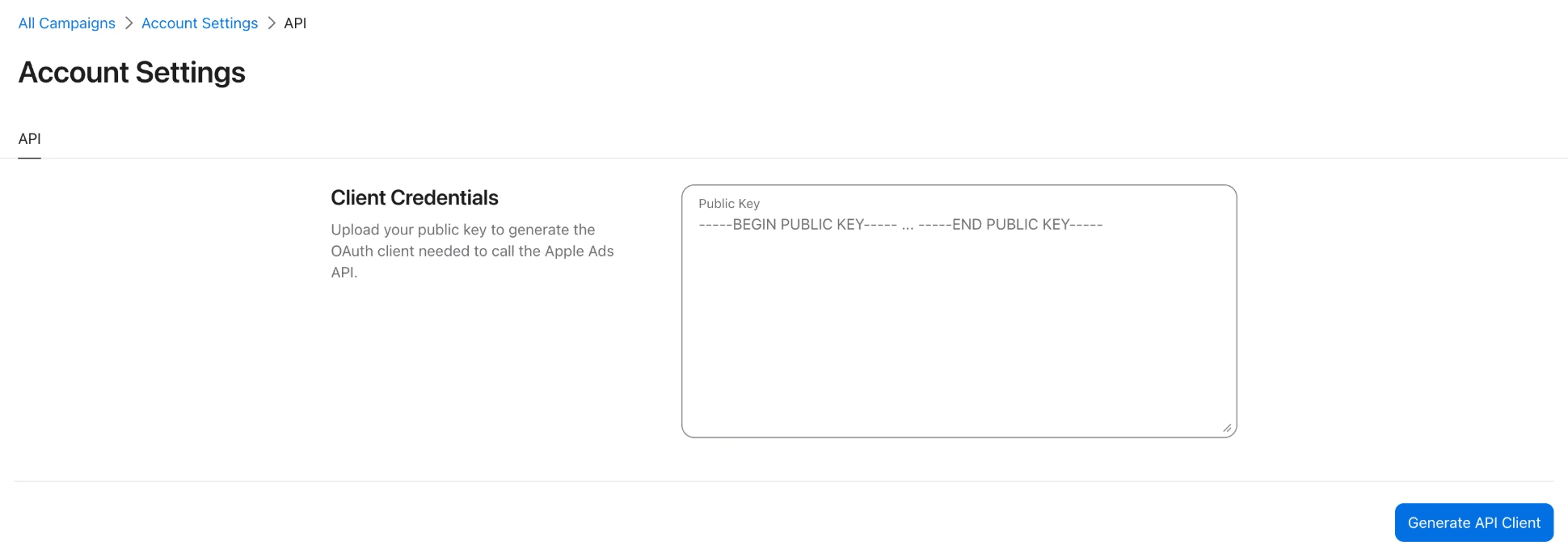
In Apple Ads, signed in as the API user, open your name → Settings. On the API tab, paste the key into Public Key and select Generate API Client.
Paste the three IDs into Cortex
Apple now shows the API client on the same page. Copy each value into the Cortex wizard:
| Cortex field | Apple Ads value | Looks like |
|---|---|---|
| Client ID | clientId | SEARCHADS.1a2b3c4d-… |
| Team ID | teamId | SEARCHADS.1a2b3c4d-… |
| Key ID | keyId | a1b2c3d4-… |
Add an optional Account label and select Continue. Cortex checks the IDs with Apple before going on.
Pick the organization
Cortex lists the Apple Ads organizations the API user can reach. Choose the one to link and select Connect.
Spending limits
After you select Connect, Cortex opens the Daily spend ceiling dialog. Set the Daily spend ceiling, then select Save ceiling. Cortex refuses later budget or bid changes that would push enabled daily budgets above this ceiling.
You're all set. Campaigns start syncing within a few minutes.
Reconnecting
If Apple access stops working, the account shows Reconnect needed and syncing pauses. Select Reconnect on the account to run the same wizard again, then remove the old account.