App Store Connect
Connect an App Store Connect API key so Cortex can read your listing and reviews and publish metadata when you ask.
Linking App Store Connect lets Cortex read your live App Store listing, sync customer reviews, and publish saved metadata drafts, release notes and review replies to your iOS apps.
Cortex only writes to your account when you or an MCP client using your API key asks it to. Credentials are verified with Apple before they are saved and stored encrypted.
Linking App Store Connect needs the Solo plan or above, and an Owner or Admin role in your organization.
How linking works
You create an API key in App Store Connect, then give Cortex its Issuer ID, Key ID and .p8 private key file. You'll switch between Cortex and App Store Connect once. The steps below follow that order.
Instructions
Start in Cortex
Go to Settings → Integrations → Link an account → App Store Connect. Select Get started. The stepper shows Step 1 of 3. Keep this tab open.
Open Team Keys in App Store Connect
Sign in to App Store Connect as the Account Holder or an Admin. Go to Users and Access → Integrations → App Store Connect API → Team Keys.
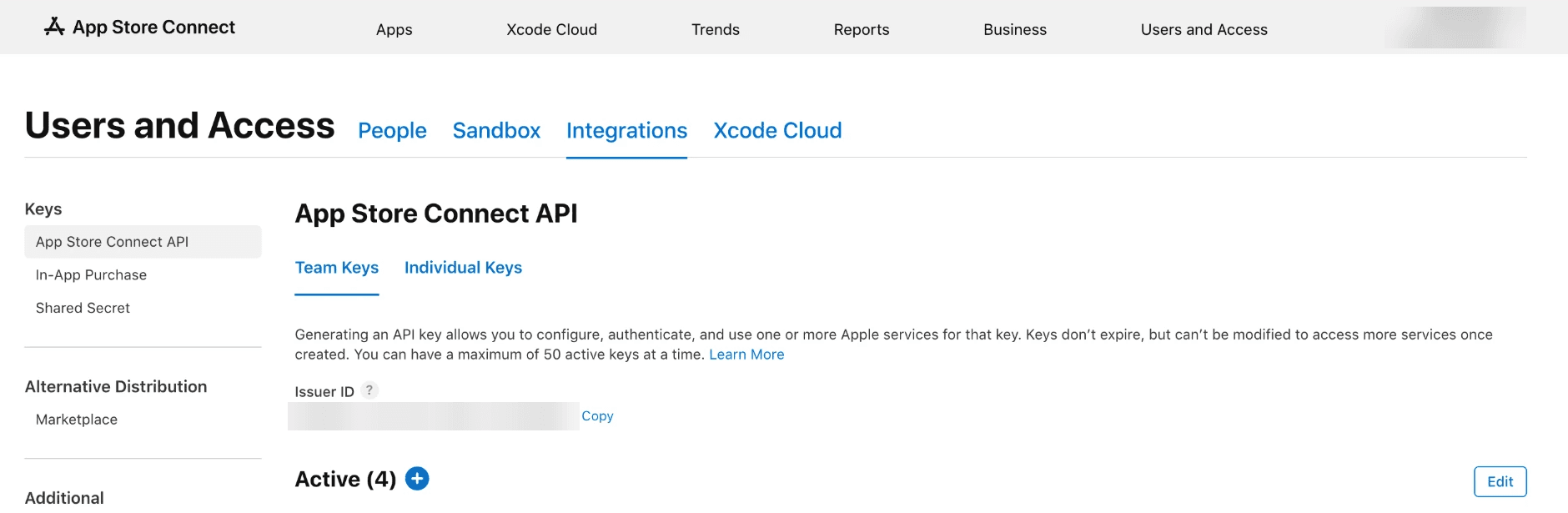
If this is your team's first key, select Request Access and accept the terms first.
Generate the key with App Manager and Sales and Reports access
Select Generate API Key (or + next to Active). Name it Cortex, add App Manager and Sales and Reports under Access, then select Generate.
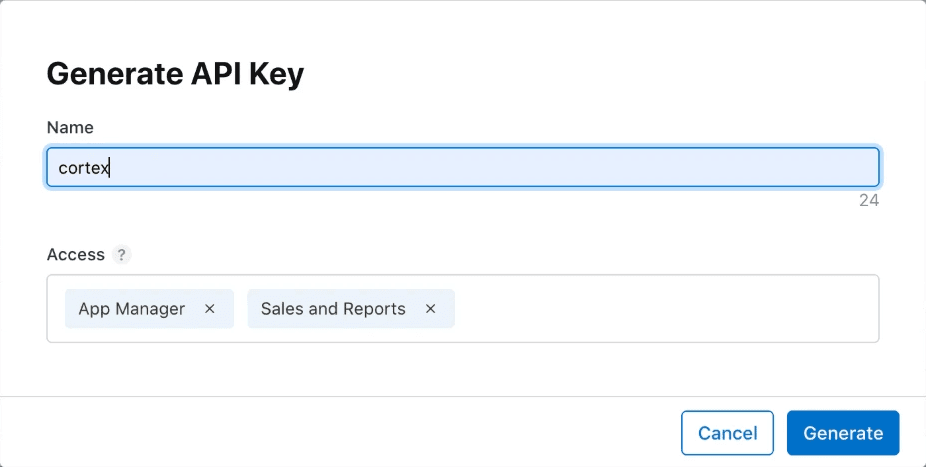
App Manager covers listing reads, publishing metadata and release notes, and syncing and replying to reviews. Sales and Reports lets Cortex read sales reports.
Daily downloads from Apple's analytics reports need the Admin role. Without it, Integrations shows a red Downloads not available yet badge and the message Give this API key the Admin role to see daily downloads, with Replace key. Listing, reviews and sales reports still work.
Impressions, product page views and conversion rate also come from those analytics reports. Cortex works without Admin and uses sales reports for unit downloads instead.
Download the private key
Select Download next to the new key and save the .p8 file. Apple lets you download it only once, so keep it somewhere safe.
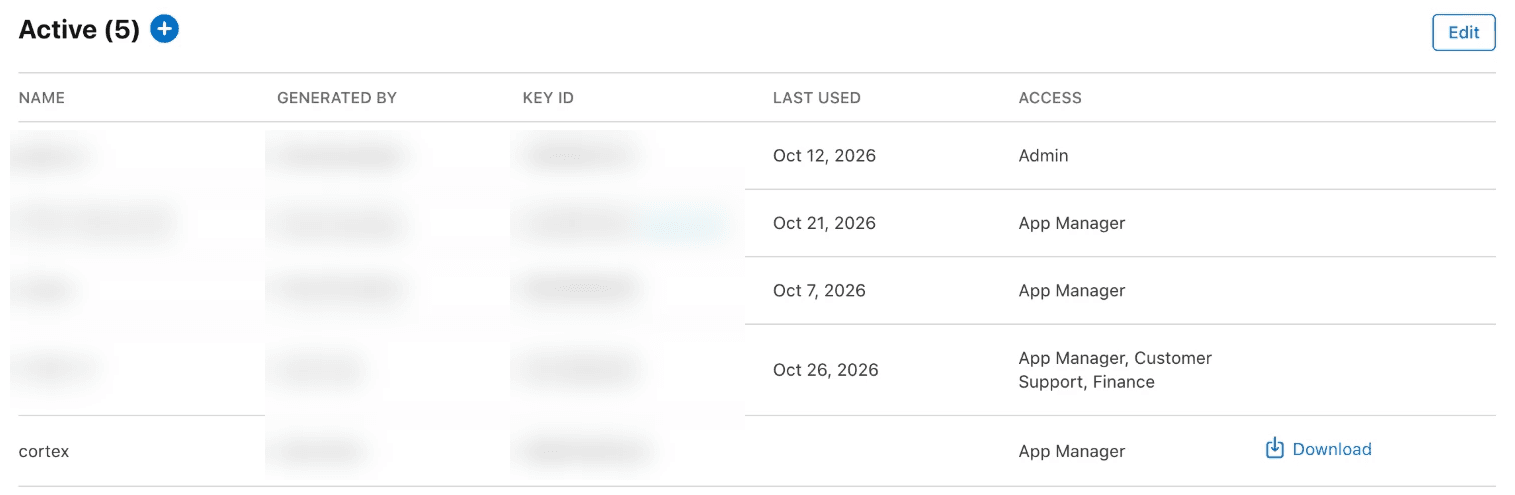
Copy the Issuer ID and Key ID
The Issuer ID is shown above the key list. The Key ID is next to your key (10 characters, for example 2X9R4HXF34).
Back in Cortex, select Continue and paste them:
| Field | Where to find it |
|---|---|
| Issuer ID | Above the key list on Team Keys |
| Key ID | Next to the key; Cortex also fills it from the file name |
Upload the private key and connect
Select Continue, upload the .p8 file (or paste its contents) and give the account a name, such as Main account. Select Connect.
Cortex checks the key with Apple first. If Apple rejects it, nothing is saved. On success you see App Store Connect connected.
You can link more than one App Store Connect account. Each key is its own row.
What Cortex does with the connection
| Feature | What happens |
|---|---|
| Live listing | Reads your listing and the editable version for each language, once a day at 06:40 UTC and when you sync |
| Metadata | Publishes saved drafts to the editable app version when you confirm |
| Reviews | Syncs customer reviews and posts replies when you confirm |
| Release notes | Updates "what's new" and promotional text through an MCP client |
| Downloads | Reads daily first-time downloads and redownloads by country from your sales reports, once a day at 08:20 UTC. Needs Sales and Reports access |
Without a connection Cortex falls back to the public listing for reading. Publishing and replying need the connection.
Publishing limits
- A live version is locked. Cortex never creates a version or a language, so publishing returns
no_editable_versionuntil your next version exists in App Store Connect. - Changing the title or subtitle also needs an editable app information record (
no_editable_app_info). - iOS limits are 30 characters for title and subtitle, 100 bytes for keywords and 4000 for the description.
- At most 10 locales per call and 10 publishes per app per UTC day.
- Every publish is a preview first. The write aborts if the live listing changed after the preview.
Keep the connection healthy
Each account shows a status on the Integrations page.
| Status | Meaning |
|---|---|
| Connected | The key works |
| Setting up | The first check has not finished |
| Degraded | Some requests are failing |
| Reconnect needed | Apple rejected the key; syncing and publishing stop |
| Disabled | The account is turned off |
Open the account's actions menu for Test connection, Rotate secret and Remove. Rotating verifies the new key with Apple first, so a bad key never replaces a working one. Removing an account stops syncing; you can link it again later.
Check from your AI client
cortex_integrations_status lists each linked account with its status, last test time and any gaps. It never returns secrets.
Is my App Store Connect account connected, and when was it last tested?See the MCP server for setup.